Connect
The console and My access
The console is a web application at the bastion's address. Users find their access there; administrators and auditors find their pages in two more spaces.
Sign in#
Open the address your administrator gave you, for example https://bastion.example.com. Sign in with:
- your BastionOS user name and password, or your directory password if your account comes from LDAP or Active Directory;
- or the single sign-on button of your company, when one is set up (Enterprise).
Then give the code of your authenticator app, or touch your security key. At your first sign-in, the console asks you to enrol an app: until you have, SSH sign-ins are refused too.
My access#
The home page lists everything you may open, whatever its kind. Each server, desktop, database or cluster has an icon of its kind, and one button per way of opening it.
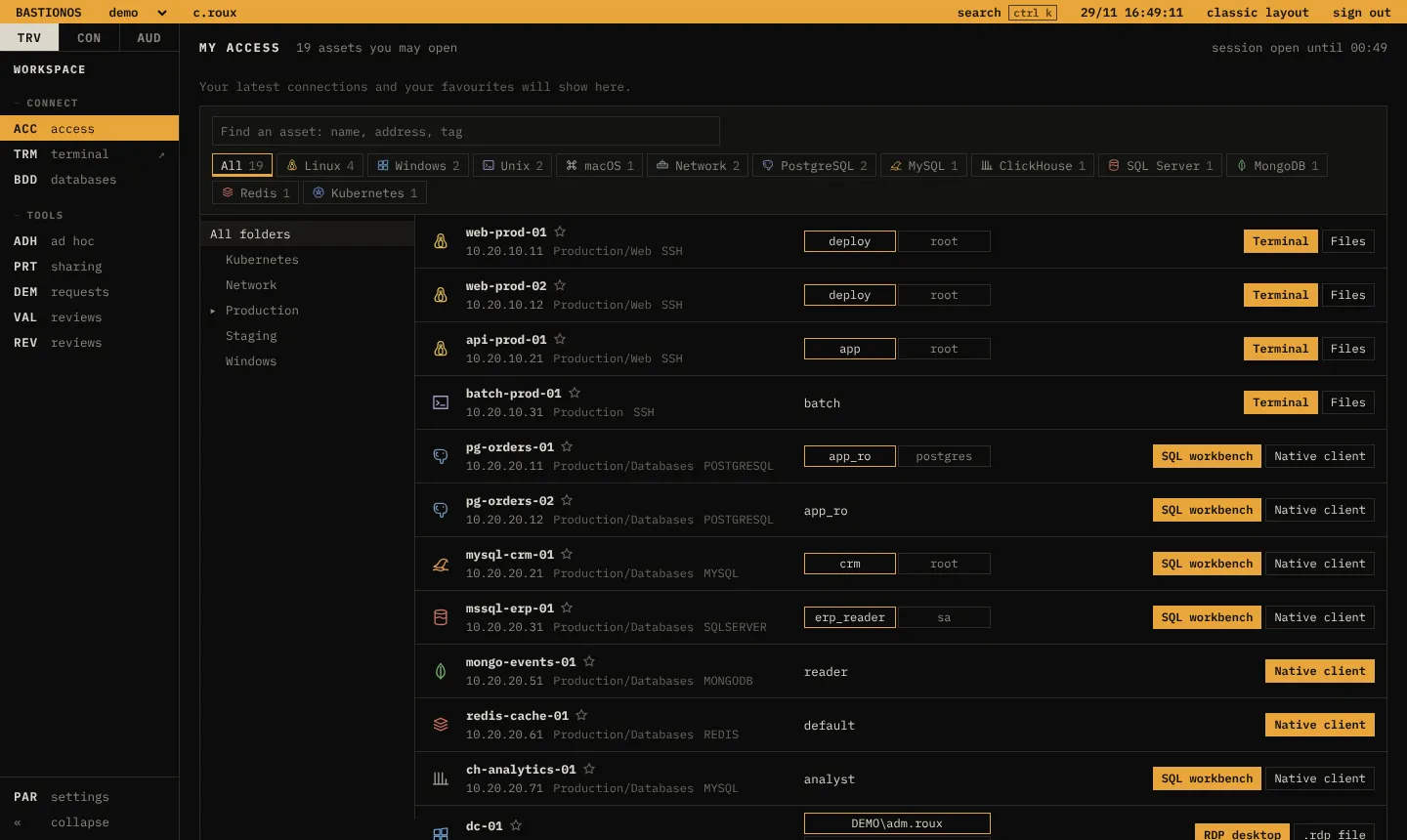
The buttons:
| Button | Opens |
|---|---|
| Terminal | an SSH or Telnet shell in a new browser tab |
| Files | file transfers over SFTP in the browser |
| RDP desktop, VNC desktop | the desktop in a browser tab |
| .rdp file | a file for mstsc, Remmina or FreeRDP |
| SQL workbench | a SQL editor in the browser |
| Native client | a connection token and the command for your database client |
| kubeconfig | a kubeconfig file for kubectl, k9s or Lens |
Search by name, address or tag, narrow to a kind with the chips or to a folder with the tree, and star the ones you use often. A row with several accounts lets you choose the account first.
If the page is empty, no access policy names you yet: ask an administrator.
The three spaces#
The menu has three spaces. Each user sees only the pages their roles open.
| Space | Holds |
|---|---|
| Workspace | My access, Web terminal, Databases, Ad hoc commands, Shared sessions, Commands to review, and, with the modules, Access requests and Access reviews |
| Console | Dashboard, Resources (assets, accounts, zones, connectors, relays), Identities (users, groups, roles, directories, identity providers), Access control (access, command and masking policies), System (organizations, license, branding, panic mode) |
| Audit | Sessions, Commands, Audit log, and in Enterprise the audit export and the detections |
The menu can be collapsed to a narrow rail.
Settings#
Settings, at the bottom of the menu, holds your own things: password, authenticator app and recovery codes, security keys and passkeys, language (English or French), layout and theme. Two layouts exist: Console, monospace and amber, and Classic, in light or dark. The choice is yours and does not affect other users.
Your session#
A console session ends after a period of inactivity and when you sign out. An administrator can end it, and so does panic mode. Closing the console does not end the SSH or database connections you opened from your own clients: they live until they end or are ended.